In this article
The module at a glance
The Competiprice PrestaShop module turns competitor price checks into proposed prices, then applies them to your store when you enable Automatic mode. It saves you repeated calculations and manual updates while keeping you in control of your positioning, limits on price reductions and the products you want to manage.
A competitor changes a price. You check the listing, find the product in your catalogue, calculate a new price and update PrestaShop. When this happens repeatedly across several products, the work can take up a sizeable part of the day.
The module connects those two steps: monitoring the market in Competiprice and adjusting prices in PrestaShop. Your team chooses the positioning to maintain. The module handles the calculations and, depending on the mode you choose, proposes or applies the changes.
See the module inside PrestaShop
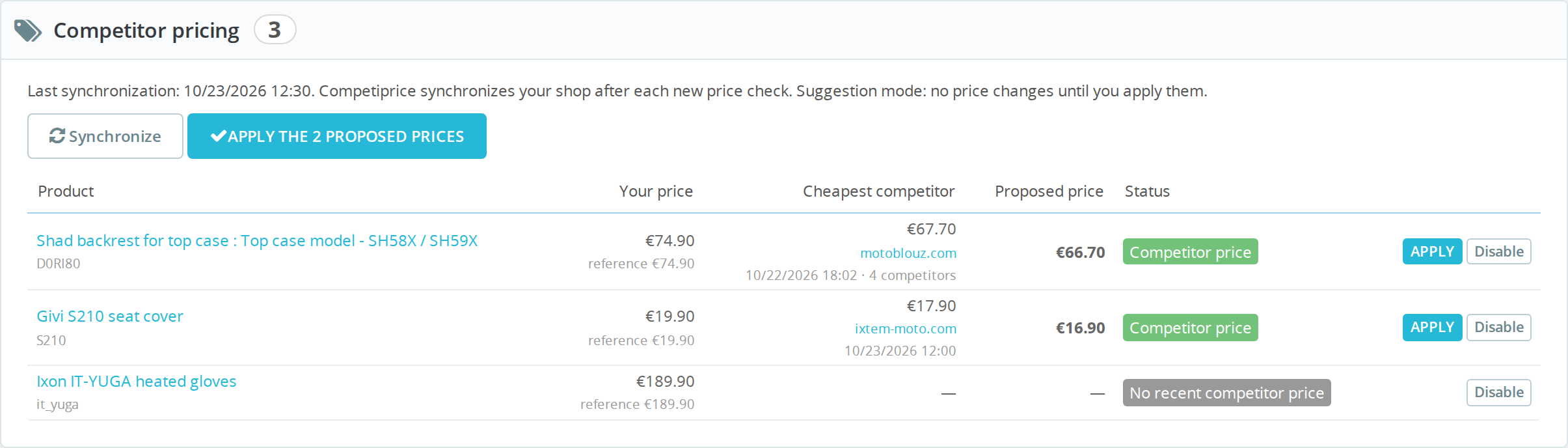
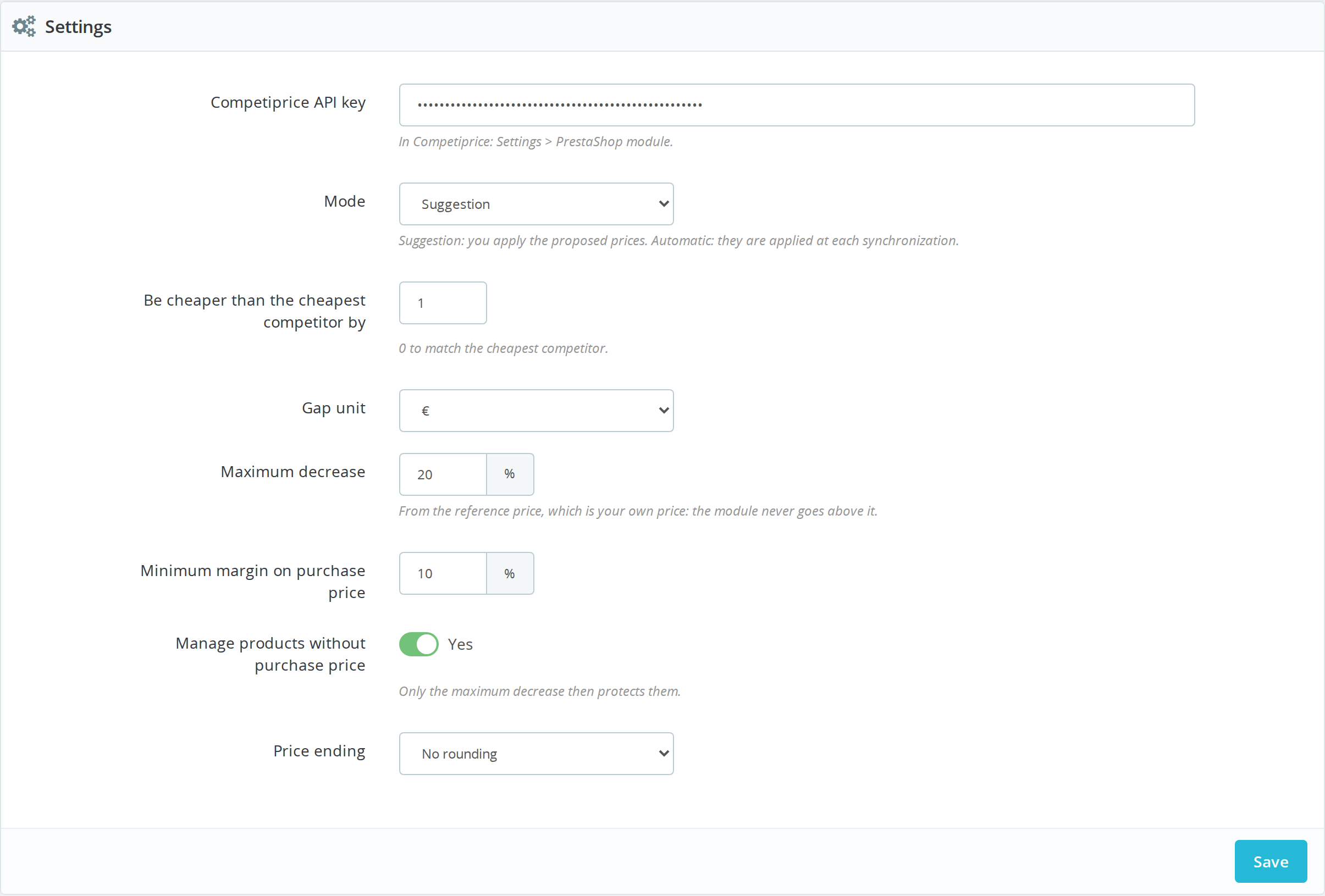
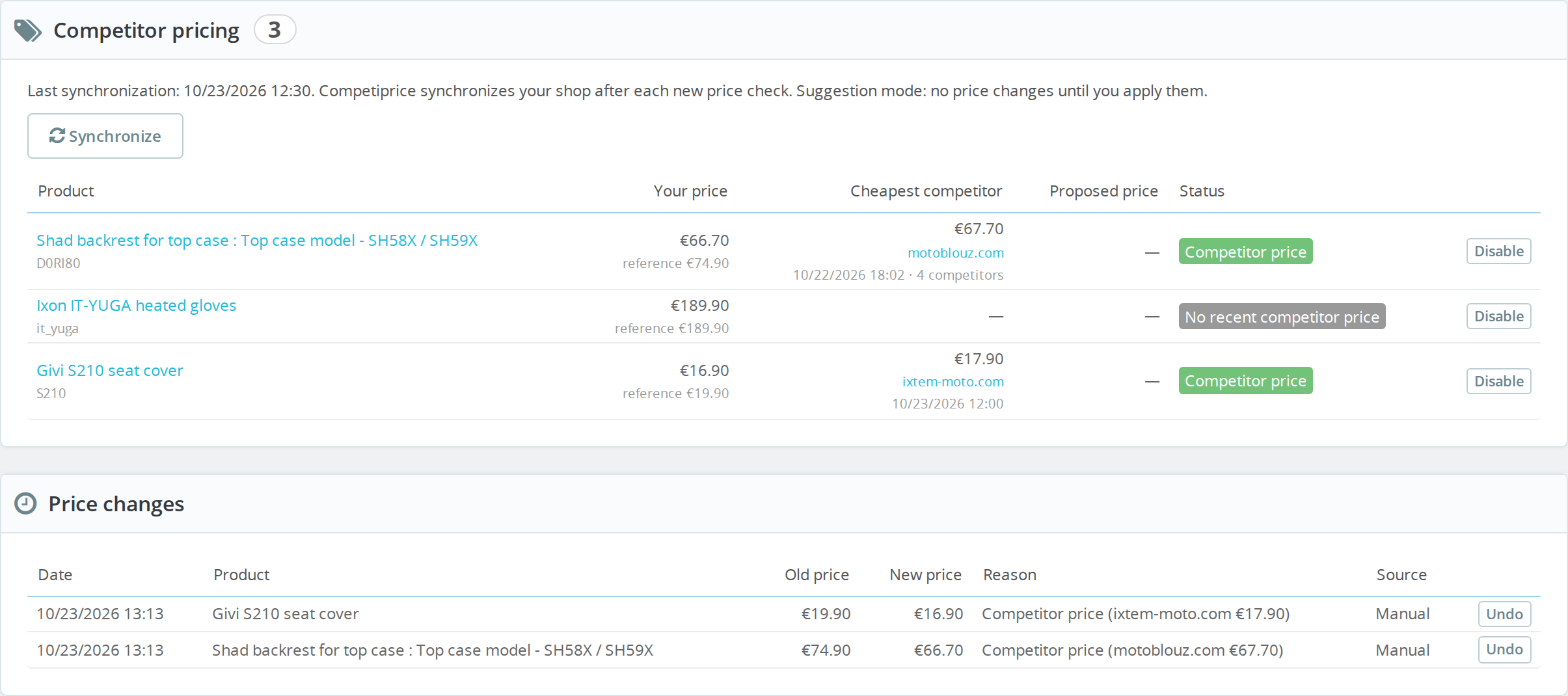
Browse the module screenshots: competitor prices, proposals, settings and history. Click an image to open it full screen and zoom in on the details.

How does automatic pricing work?
You monitor your products and their competing offers in Competiprice. The module finds the matching references in your PrestaShop catalogue, retrieves the available price checks and calculates a proposed price for each product with pricing enabled.
- Competiprice collects competitor prices from the URLs you monitor.
- The module calculates your price positioning using the cheapest eligible competitor and your settings.
- The price is proposed or applied in PrestaShop, depending on whether you choose Suggestion or Automatic mode.
This is also known as automatic repricing. Updates follow synchronisations and newly available price checks, so their frequency depends on your Competiprice monitoring schedule.
Set your price positioning and its limits
The selected competitor price is the starting point. Your chosen gap, price floor and ceiling determine the proposed price. These settings apply to all products for which you have enabled pricing.
Match a competitor or keep a chosen gap
A gap of zero lets you match the competitor. You can also choose to price below the cheapest competitor by a fixed amount or percentage. For example, a €1 gap with a competitor at €95 produces a calculated price of €94, subject to your limits.
Limit reductions relative to your own price
The module keeps a reference price: your price at the first synchronisation, or a new price you subsequently set yourself. The maximum reduction is calculated from this reference. With a reference price of €100 and a maximum reduction of 20%, this first floor is €80.
The reference also acts as a ceiling. If the market rises, the module can raise a price it previously lowered, up to your reference price. It does not automatically exceed that ceiling.
Take the recorded purchase cost into account
If a purchase cost is recorded in PrestaShop, the module calculates a second floor using that cost excluding VAT, your chosen minimum percentage and the product’s VAT rate. It uses the higher of the two floors: the one based on the maximum reduction and the one based on purchase cost.
For products without a purchase cost, you choose whether to include or exclude them. If you include them, only the maximum reduction determines their floor. For more detail, read our guide to the impact of a discount on margin.
Keep consistent price endings
You can keep the calculated price to the cent or choose endings of .90 or .99. The module then rounds the proposal down to that ending. If this would take the price below the floor, the ending is skipped to preserve that threshold.
Example: lower a price when possible, raise it when the market allows
Consider a fictional product with a reference price of €100 including VAT, a purchase cost of €60 excluding VAT and a VAT rate of 20%. You choose a €1 gap, a maximum reduction of 20%, a minimum markup on purchase cost of 20% and no specific price ending.
The floor based on the maximum reduction is €80. The floor based on purchase cost is 60 × 1.20 × 1.20 = €86.40 including VAT. The module therefore uses €86.40 as the floor and €100 as the ceiling.
| Cheapest eligible competitor | Proposed price | What determines the result |
|---|---|---|
| €95 incl. VAT | €94 incl. VAT | The €1 gap can be applied within your chosen limits. |
| €70 incl. VAT | €86.40 incl. VAT | The floor is reached: the module does not continue the reduction to €69. |
| €120 incl. VAT | €100 incl. VAT | The module can return to your reference price, without exceeding it. |
| No eligible competitor price | No change proposed | Your current store price remains in place. |
Review suggestions, then automate your updates
| Mode | How it works in PrestaShop | What you do |
|---|---|---|
| Suggestion | The module displays proposed prices based on competitor checks and your settings. | Apply an individual proposal or all pending proposals. |
| Automatic | Proposed prices are applied during automatic synchronisations. | Set the parameters and products to manage, then monitor the changes. |
Suggestion is the module’s default mode. It lets you check product matches, review proposals and adjust your thresholds before enabling automatic updates. The Catalogue → Competitor pricing screen brings together your price, the selected competitor, the proposal and its status.
Stay in control of products and price changes
- Enable or disable individual products. You can leave selected references outside automatic pricing.
- Review recent adjustments. The change log records the date, previous price, new price, associated competitor and whether the change was manual or automatic.
- Undo a change. The module restores the previous price and pauses pricing for that item until you enable it again.
- Preserve existing promotions. Products discounted by a specific price or catalogue price rule are excluded from the calculation.
Simple products and combinations can be matched by their reference, with combination references taking priority. Accurate matching is essential: a different size, capacity, pack quantity or condition can distort the price positioning. Our guide to matching competitor products explains what to check.
Pricing a combination adjusts its price impact. Changing a product’s base price also affects its combinations, so take your catalogue structure into account when choosing which references to manage.
The calculation excludes offers marked as unavailable and price checks more than 48 hours old. It uses the product prices supplied by Competiprice; shipping costs are not automatically added to the rule. Choose comparable offers in the same currency and on a consistent price basis.
How do you install the Competiprice PrestaShop module?
The module is designed for PrestaShop 1.7.6 and later. To get started, you need a Competiprice account containing the products and competitor URLs to monitor, with references that match your catalogue.
- Download the module as a ZIP file from your Competiprice settings or using the button below.
- Install it in PrestaShop under Modules → Module Manager → Install a module, by uploading the ZIP file.
- Generate your API key in Competiprice under Settings → PrestaShop module.
- Connect your store in PrestaShop under Catalogue → Competitor pricing: paste the key and save.
- Check proposals in Suggestion mode, set your limits and enable Automatic mode once you are happy with your settings.
Your store must be accessible over the Internet to receive automatic synchronisations. The frequency of price checks depends on your Competiprice plan; see the pricing section for details. PrestaShop also explains how to upload a ZIP file in its official module installation guide.
Download the PrestaShop module
Still setting up your monitoring? Test price detection on your competitor URLs. This test checks price collection; connecting to your store and applying prices comes afterwards through the module.
Frequently asked questions about PrestaShop pricing
Does the module change my prices as soon as I install it?
The module starts in Suggestion mode. Proposals are applied when you approve them. In Automatic mode, they are applied during automatic synchronisations.
Can it raise a price that it previously lowered?
Yes. If new price checks allow it, the module can raise the price up to your reference price. This ceiling is your initial price or the latest price you set yourself.
What happens when there is no eligible competitor?
The module does not propose a new price. Your current price stays in place. Missing prices, checks more than 48 hours old and offers marked as unavailable cannot be used to calculate a new proposal.
Can I use different settings for each product?
The positioning, maximum reduction, purchase cost threshold and price ending settings apply to all managed items. You can enable or disable pricing individually for each matched product or combination.
Does the module create a strikethrough price?
No. It changes the product’s base price excluding VAT, or the price impact of its combination. It does not create a discount or a strikethrough price to display the new price.
Can I use the module with a special store configuration?
For a multistore or multicurrency setup, or a store with specific pricing rules, contact us so we can check your configuration and agree on the appropriate setup before you enable pricing.
Not using PrestaShop? Get a quote for a custom integration
Using Shopify, WooCommerce, Magento or a custom-built store? Want to manage prices from an ERP? We offer custom integration with a tailored quote to connect Competiprice price checks to your own environment.
We work with you to define the products to manage, calculation rules, limits and update frequency. The scope depends on your platform and the connections it supports.
Tell us about your store, its platform, the number of product references involved and an example of the pricing rule you want to apply so we can prepare your quote.